Our Story
Vinylfy started as a project for my daughter, who is a big fan of vinyl records. Due to her limited budget, she asked if there was a way to make her collection of MP3s sound more like her preferred sound. Hence, Vinylfy was born. Vinylfy's "AJW Recommended" preset is tuned for her favorite sound, and it is a great starting point for anyone looking to get started with Vinylfy. It is the default preset for Vinylfy, and it is based on her favorite records.
Documentation
Welcome to the Vinylfy documentation. Here you will find everything you need to know about setting up, deploying, and customizing your own instance of Vinylfy.
Quick Start
Vinylfy is a web application that can be run on any local server via Docker. The best way to get started is to use Docker Compose with environment variables.
You can deploy Vinylfy with default settings through either Docker Hub or GHCR. Vinylfy will
automatically generate a
secure secret key for you. However, this key will be regenerated on every restart, so it is
recommended to set a custom
secret key in production via the environment variable SECRET_KEY and Docker Compose.
Via Docker Hub:
docker run -d -p 8888:8888 -v vinylfy-data:/tmp/vinylfy --name vinylfy 121gigawatz/vinylfy:latest
Via GHCR:
docker run -d -p 8888:8888 -v vinylfy-data:/tmp/vinylfy --name vinylfy ghcr.io/121gigawatz/vinylfy:latest
Environment Variables
Vinylfy uses environment variables to configure the application. Below is a table of the environment variables that are used by Vinylfy.
| Variable | Description | Default Value | Required To Be Changed | Notes |
|---|---|---|---|---|
| FLASK_ENV | The environment in which the application will run. | production | No | Must be 'development', 'testing', or 'production'. Not recommended to set to 'development' or 'testing' in production. |
| DEBUG_MODE | Whether or not the application will run in debug mode. | false | No | Not recommended to set to 'true' in production. |
| SECRET_KEY | The secret key used by the application. | your-secret-key-here-change-in-production | Recommended to change in production | Must be a random string of characters up to 32 characters long. If left blank or unchanged from the default, a secret key will be generated automatically. However, this key will be regenerated on every restart. |
| PORT | The port on which the application will run. | 8888 | No | Must be a number between 1024 and 65535. |
| MAX_UPLOAD_SIZE | The maximum file size in MB that can be uploaded. | 25 | No | Can be any positive integer. If planning to upload large files (such as WAV files), consider increasing this value. |
| FILE_TTL_HOURS | The time-to-live for files in hours. | 1 | No | Can be any positive integer. Files will be automatically deleted after this time, regardless if they are processed or still in use. This is to prevent the storage of files that are no longer needed. |
| CORS_ORIGINS | The origins that are allowed to access the API. | * | No | Can be any string. If set to '*', all origins are allowed. Otherwise, only the
specified
origins are allowed.
If using a reverse proxy, include the FQDN or IP the browser uses. IMPORTANT:
Origins
must be `protocol://domain:port` (NO trailing slash or path!).
Examples:
|
| DOCKER_CPU_LIMIT | The CPU limit for the application. | 2.0 | No | Must be a positive integer |
| DOCKER_MEMORY_LIMIT | The memory limit for the application. | 1G | No | Must be a positive integer. Use G for gigabytes and M for megabytes. |
First, create a .env file in the root directory of the project.
# Vinylfy Environment Configuration
# Copy this file to .env and customize for your environment

# ============================================================================
# APPLICATION SETTINGS
# ============================================================================

# Flask environment (development, production)
FLASK_ENV=production

# Enable debug mode (true/false) - DO NOT use in production
DEBUG_MODE=false

# Secret key for session management - CHANGE THIS IN PRODUCTION!
SECRET_KEY=change-me-in-production-use-a-long-random-string

# ============================================================================
# SERVER SETTINGS
# ============================================================================

# Port to expose the application (default: 8888)
PORT=8888

# ============================================================================
# FILE UPLOAD SETTINGS
# ============================================================================

# Maximum upload file size in MB (default: 25)
MAX_UPLOAD_SIZE=25

# File time-to-live in hours before automatic deletion (default: 1)
# Supports decimals (e.g. 0.5 for 30 minutes)
FILE_TTL_HOURS=1

# ============================================================================
# CORS SETTINGS
# ============================================================================

# Allowed CORS origins
# Controls which domains can access the API.
# Use '*' to allow ALL domains (easiest).
# For production, list specific domains to improve security.
# If using a reverse proxy, include the FQDN or IP the *browser* uses.
# IMPORTANT: Origins must be `protocol://domain:port` (NO trailing slash or path!).
# (e.g., https://yourdomain.com NOT https://yourdomain.com/api/)

#
# Examples:
#   CORS_ORIGINS=*
#   CORS_ORIGINS=https://yourdomain.com,http://localhost:5500,http://192.160.1.1:5500
#
CORS_ORIGINS=*

# ============================================================================
# DOCKER RESOURCE LIMITS (Optional)
# ============================================================================

# CPU limit (default: 2.0 cores)
# DOCKER_CPU_LIMIT=2.0

# Memory limit (default: 1G)
# DOCKER_MEMORY_LIMIT=1G

# ============================================================================
# NOTES
# ============================================================================

# - All settings have sensible defaults
# - Only SECRET_KEY must be changed for production
# - Files are automatically cleaned up after FILE_TTL_HOURS
# - Persistent data is stored in Docker volume 'vinylfy-data'
Next, create a docker-compose.yml file in the root directory of the project.
version: '3.8'

services:
  vinylfy:
    # Pull pre-built image from Docker Hub
    image: 121gigawatz/vinylfy:latest
    container_name: vinylfy
    ports:
      - "${PORT:-8888}:8888"

    # Load configuration from .env file (optional)
    # env_file: .env

    # Or set environment variables here to override defaults
    # environment:
      # - FLASK_ENV=production
      # - SECRET_KEY=change-me-in-production

    volumes:
      # Persistent storage for temp files
      - vinylfy-data:/tmp/vinylfy

    restart: unless-stopped

volumes:
  vinylfy-data:
    driver: local
Installation
Navigate to the directory where your docker-compose.yml and .env files are stored. Open up a terminal and run the following:
docker compose up -d
This will start the Vinylfy application in a Docker container. Note the "-d" flag is optional and will deploy the container in the background. If you omit the "-d" flag, the container will start in the foreground and you will see the logs in real-time.
Security
Vinylfy does not require a login or password to access the application. If exposing this to the
internet, we
recommend using a reverse proxy, secure VPN tunnel, or SSO provider to secure access to the
application.
Some good options for SSO providers include:
Reverse Proxy Setup
Vinylfy can be deployed behind a reverse proxy to improve security and performance. We recommend
using a reverse proxy to secure access to the application.
Some good options for reverse proxies include:
Please ensure your reverse proxy is configured to forward the correct headers to the application.
Vinylfy includes an nginx.conf file internally for the API. Please do not modify this file
unless
you know what you're doing!
Using Vinylfy
Once you have Vinylfy running (either locally or deployed), open your browser and navigate to the
application URL (e.g., http://localhost:8888 or
https://vinylfy.yourdomain.com).
Vinylfy will launch immediately in your browser. If you are accessing Vinylfy on a mobile device for the first time, you will be prompted to install Vinylfy as a Progressive Web App (PWA), if your browser, device, and operating system support it. See more information about PWA in Vinylfy below.
1. Load An Audio File
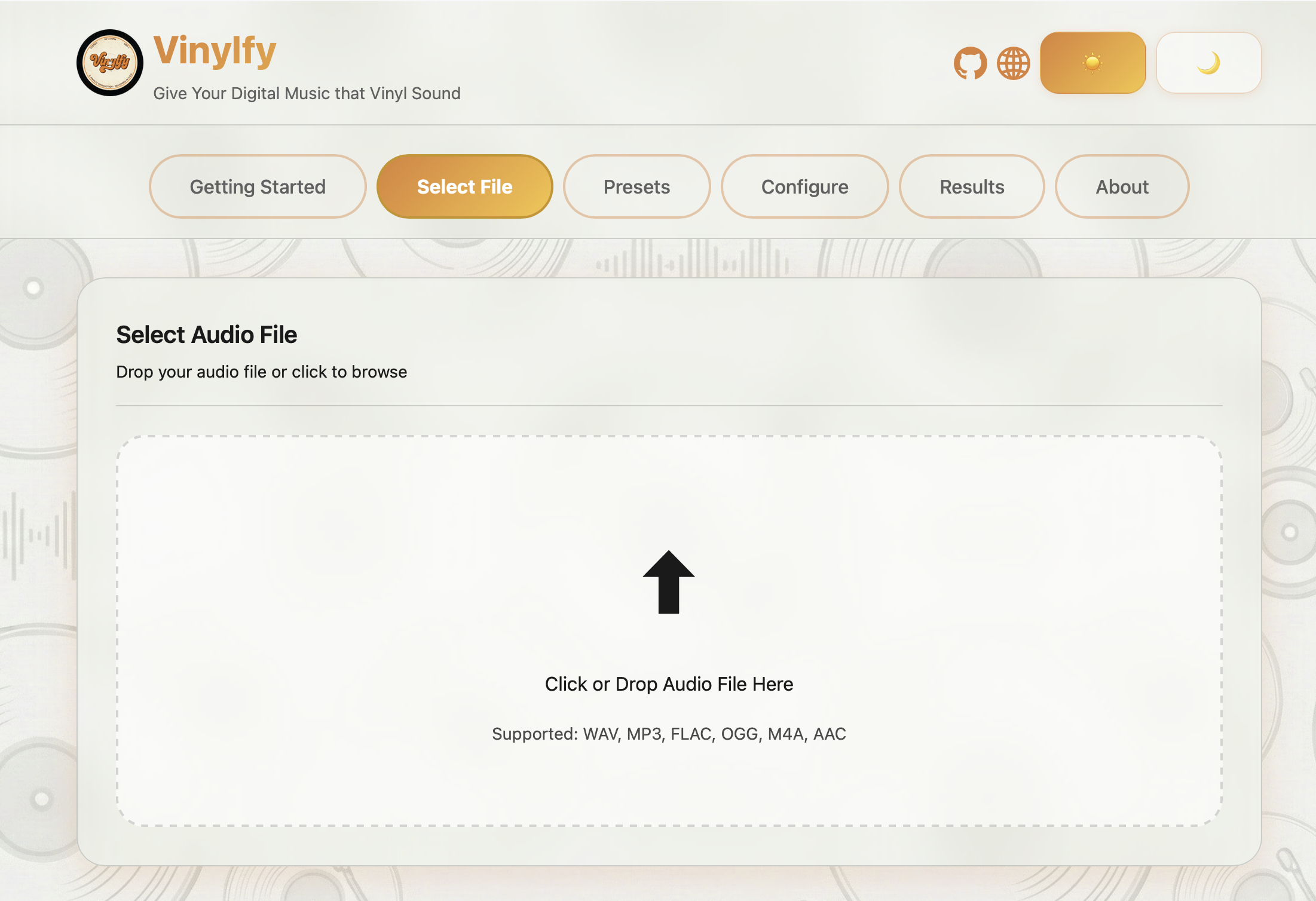
Click the "Select File" area or drag and drop an audio file onto the drop zone. Supported formats include MP3, WAV, FLAC, AAC, and OGG.
2. Select a Preset
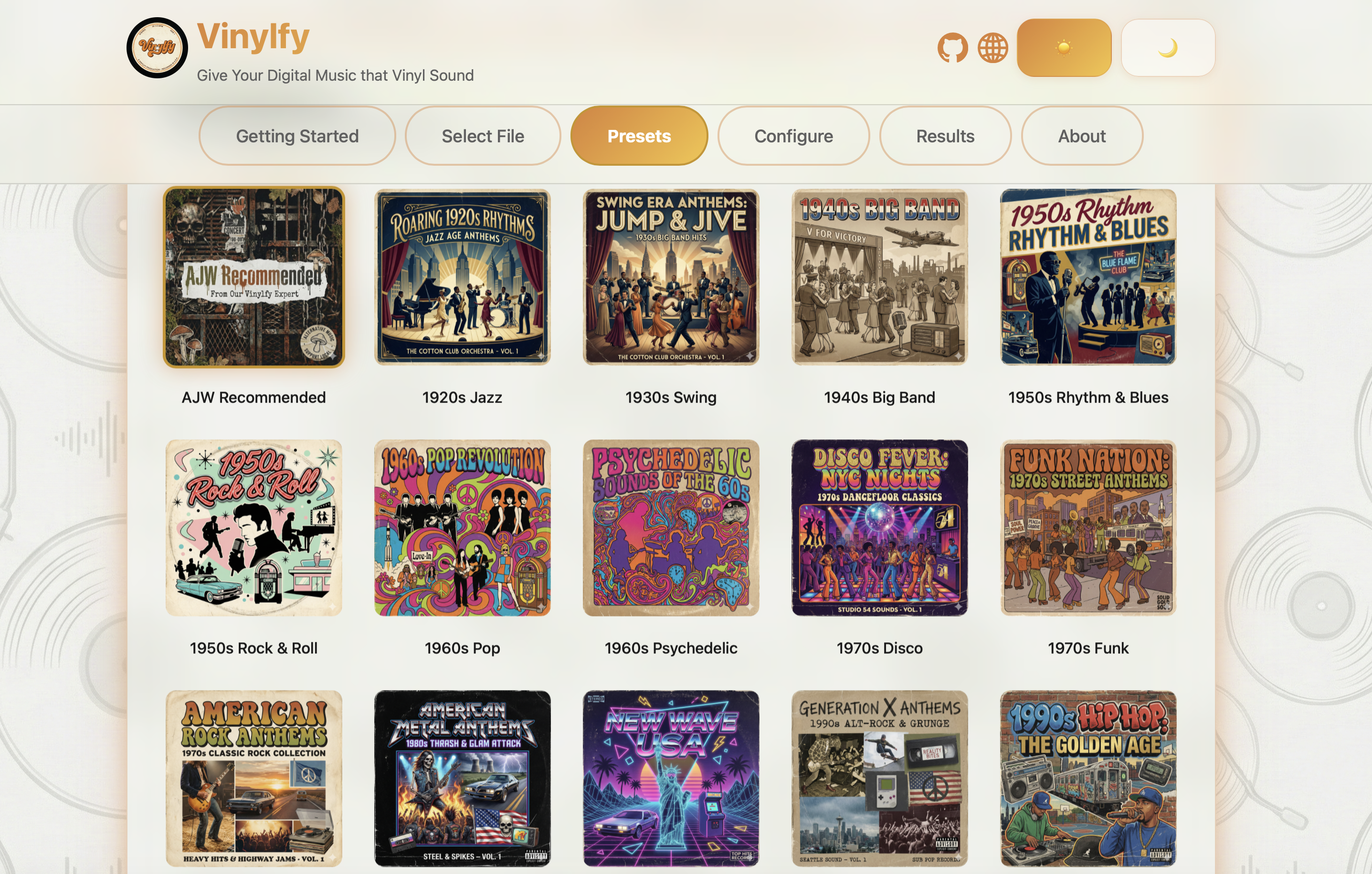
Vinylfy comes with era-specific presets that instantly tune the audio characteristics. Choose from "1920s Jazz", "1970s Rock", "Modern Vinyl", and more. The default "AJW Recommended" preset offers a balanced, high-quality analog warmth.
Click the "Presets" tab to view all available presets. You can also choose our Custom Preset to fine-tune the audio characteristics to your liking. If you change the settings on the next tab, the Custom Preset will be applied automatically.
3. Configure Output
For advanced control, click the "Configure" tab. Here you can tweak individual parameters:
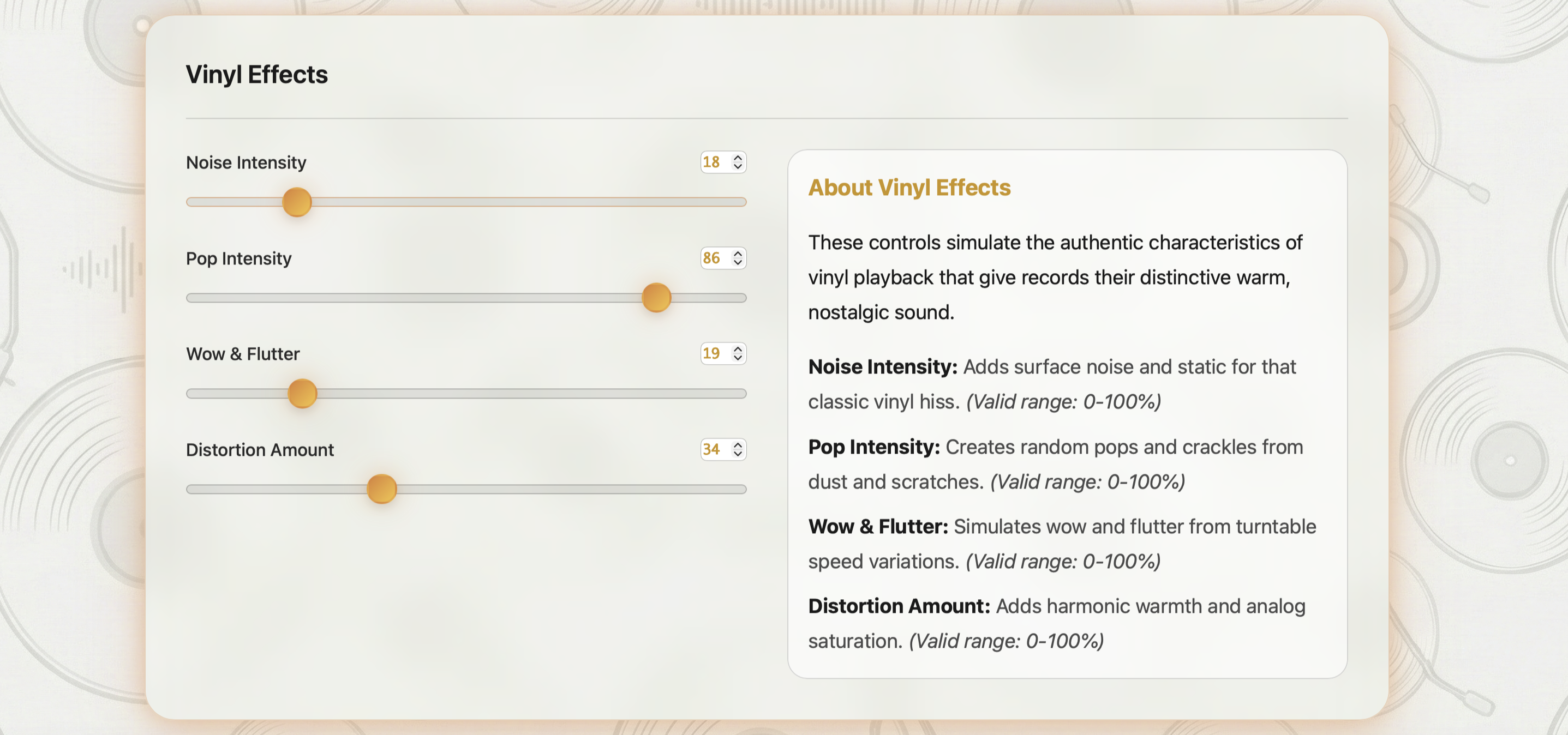
There are three main sections in the Configure tab:
- Vinyl Effects: This section is designed to simulate the physicl effects of vinyl records, such as Noise Intensity (surface noise and mechanical noise), Pop Intensity (pops/crackles), Wow & Flutter (subtle pitch variations and speed variations), and Distortion Amount (analog warmth).
- Equalizer: Fine tune the EQ curves (bass, mids, and trebles) to your liking.
- Filters: Deeper control over the sound, including a low-pass filter and a high-pass filter to remove unwanted frequencies. Apply the RIAA equalization curve to simulate the sound of vinyl records.
Each preset is a unique combination of applying the vinyl effects, equalizer, and filters. Below is a table of all of the presets and their settings.
| Preset Name |
Noise Intensity (%) |
Pop Intensity (%) |
Wow & Flutter (%) |
Distortion Amount (%) |
Bass (db) |
Mids (db) |
Treble (db) |
Low Pass Filter (Hz) |
High Pass Filter (Hz) |
Stereo Width (%) |
RIAA Curve |
|---|---|---|---|---|---|---|---|---|---|---|---|
| AJW Recommended |
18 | 86 | 19 | 34 | 0.7 | 1.7 | 1.7 | 15 | 120 | 70 | Yes |
| 1920's Jazz |
95 | 90 | 90 | 85 | -5 | 5 | 5 | 4 | 250 | 0 | No |
| 1930's Swing |
85 | 75 | 90 | 70 | -4 | 4 | -4 | 150 | 6 | 0 | No |
| 1940's Big Band |
75 | 65 | 60 | 60 | -2 | 3 | -3 | 100 | 9 | 0 | No |
| 1950's Rock & Roll |
55 | 55 | 40 | 50 | 1 | 2 | -1 | 60 | 10 | 0 | Yes |
| 1950's Rhythm & Blues |
55 | 50 | 35 | 55 | 2 | 2 | -2 | 50 | 9 | 0 | Yes |
| 1960's Pop |
45 | 35 | 30 | 35 | -1 | 2 | 2 | 40 | 14 | 60 | Yes |
| 1960's Psychedelic |
40 | 40 | 45 | 45 | 1 | 1 | 1 | 30 | 15 | 90 | Yes |
| 1970's Rock |
30 | 20 | 20 | 25 | 2 | 0 | 1 | 30 | 18 | 95 | Yes |
| 1970's Disco |
25 | 10 | 10 | 15 | 4 | -1 | 3 | 20 | 20 | 100 | Yes |
| 1970's Funk |
35 | 25 | 15 | 30 | 3 | 1 | 2 | 20 | 19 | 95 | Yes |
| 1980's New Wave |
20 | 15 | 10 | 10 | -1 | 1 | 4 | 40 | 20 | 100 | Yes |
| 1980's Metal |
35 | 30 | 10 | 45 | -1 | -2 | 3 | 40 | 18 | 90 | Yes |
| 1990's Alternative |
50 | 35 | 20 | 40 | 2 | -1 | 1 | 30 | 19 | 85 | Yes |
| 1990's Hip-Hop |
45 | 40 | 5 | 30 | 5 | 0 | 1 | 20 | 18 | 80 | Yes |
| 2000's Pop |
40 | 20 | 10 | 20 | 3 | 1 | 4 | 20 | 20 | 95 | Yes |
| 2000's Indie |
55 | 30 | 25 | 50 | 1 | 3 | -1 | 40 | 16 | 90 | Yes |
| 2010's Pop |
2 | 10 | 10 | 10 | 3 | 0 | 5 | 20 | 20 | 100 | Yes |
| 2010's Electronic |
2 | 5 | 5 | 5 | 5 | -2 | 4 | 15 | 20 | 85 | Yes |
| 2020's Modern Vinyl |
5 | 1 | 2 | 2 | 1 | 0 | 1 | 20 | 20 | 100 | Yes |
4. Process Your File
When you are happy with your settings, click the large "Process" button. This sends your file to the backend where the effects are applied. Processing time depends on the file length.

5. Preview Results
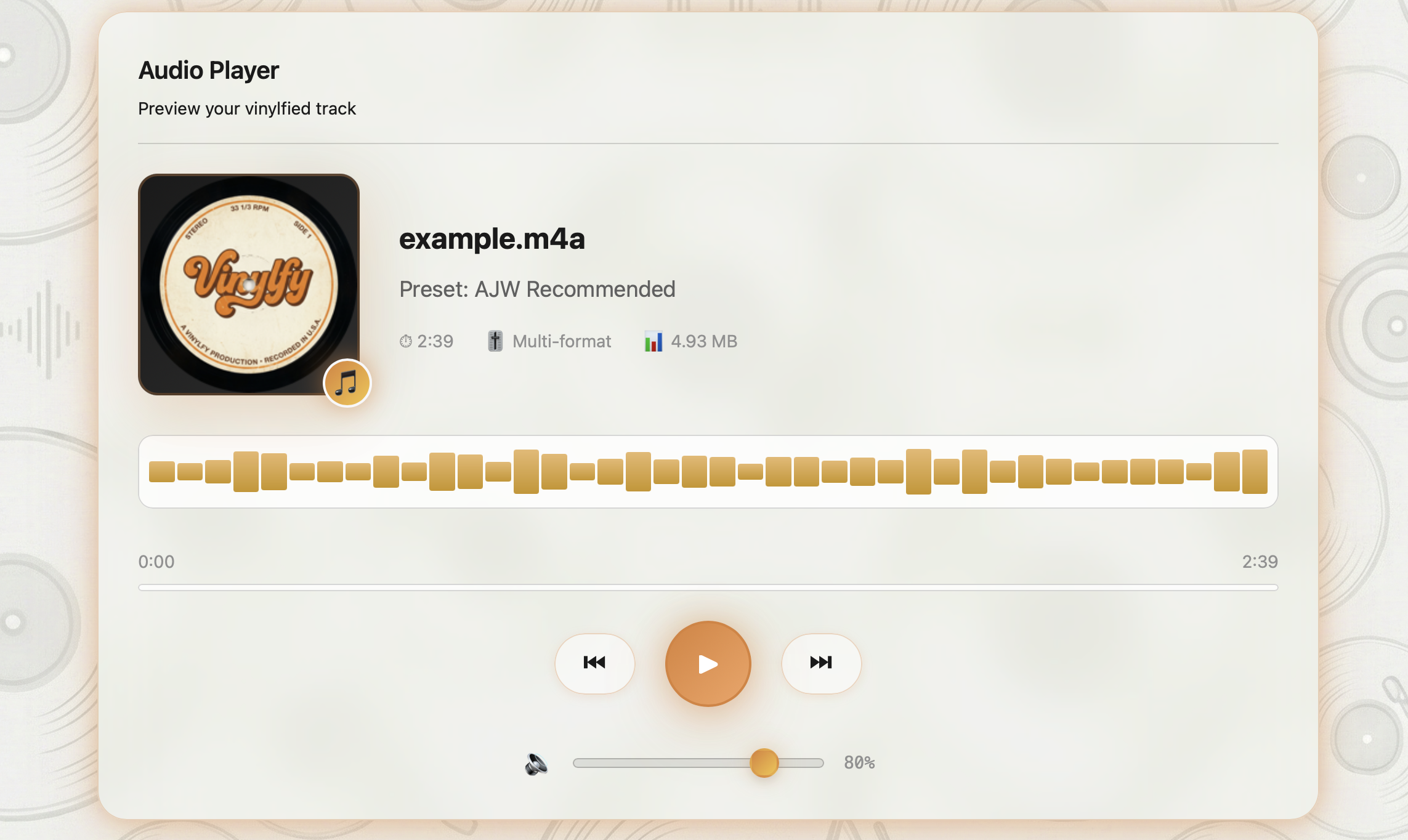
Once processing is complete, you will be automatically be redirected to the Results tab. In this
tab,
you will see three sections: Audio Player, Processing Details, Track Metadata, and Download.
The Audio Player allows you to listen to the processed file through your browser.
The Processing Details section shows you the settings that were applied to the file.
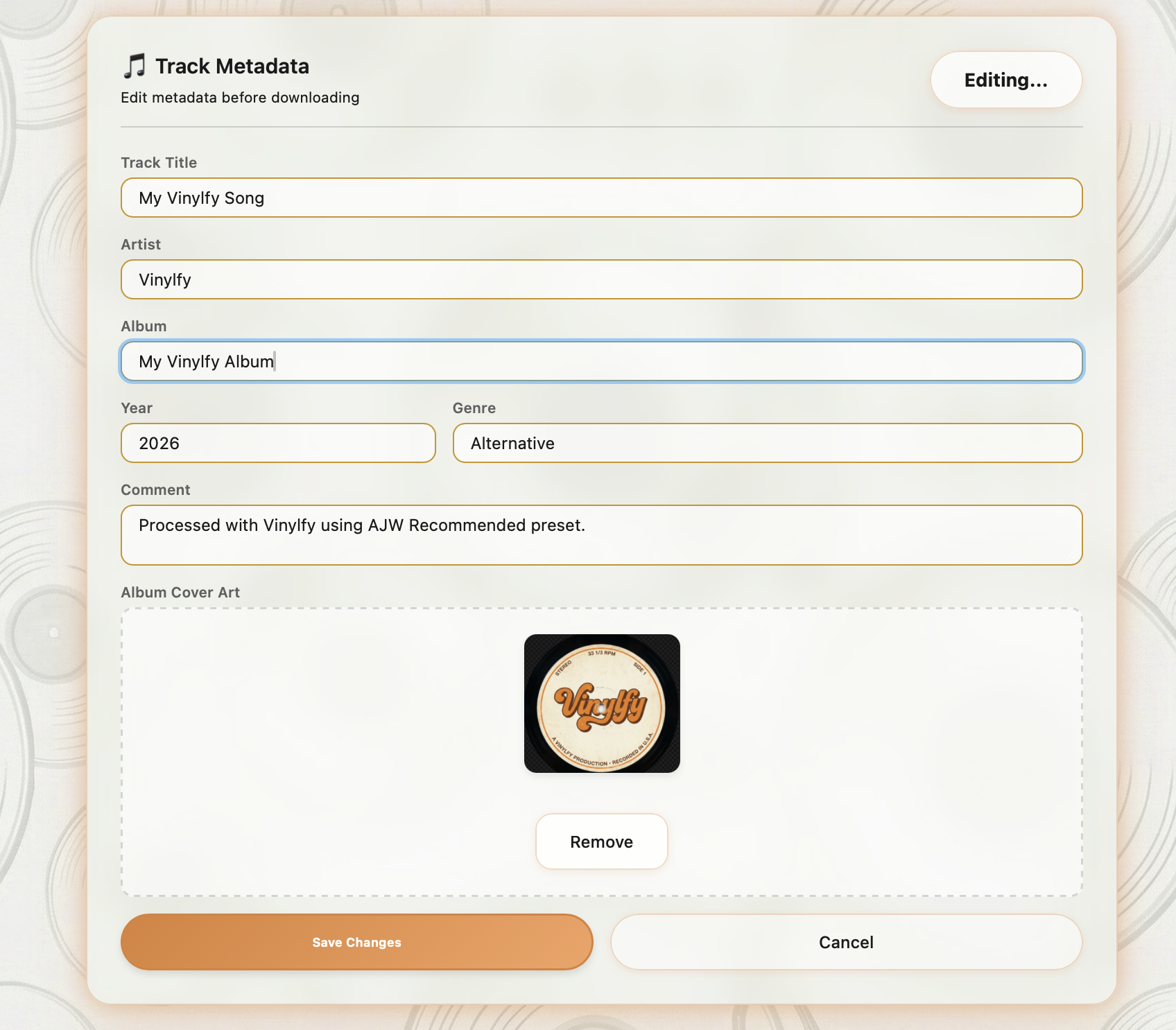
6. Manage Metadata
If the uploaded file has metadata already embedded, it will be displayed in the metadata area. If
you
wish to change any metadata, or if no metadata exists,
click the Edit button to update the track metadata. Use the metadata editor to update the Track
Title, Artist, Album, Year, Genre, and any Comments.
You can also upload custom Cover Art which will be embedded into the final file. By default, the
comments field will include "Processed with Vinylfy using the [Preset Name] preset".
However, you can remove this comment if you wish, and/or add your own custom comment.
When
finished, click the "Save" button to save your metadata. Note that
the metadata will not be saved until you click the "Save" button. The metadata will be embedded
into
the file upon download.
7. Export / Download Your File
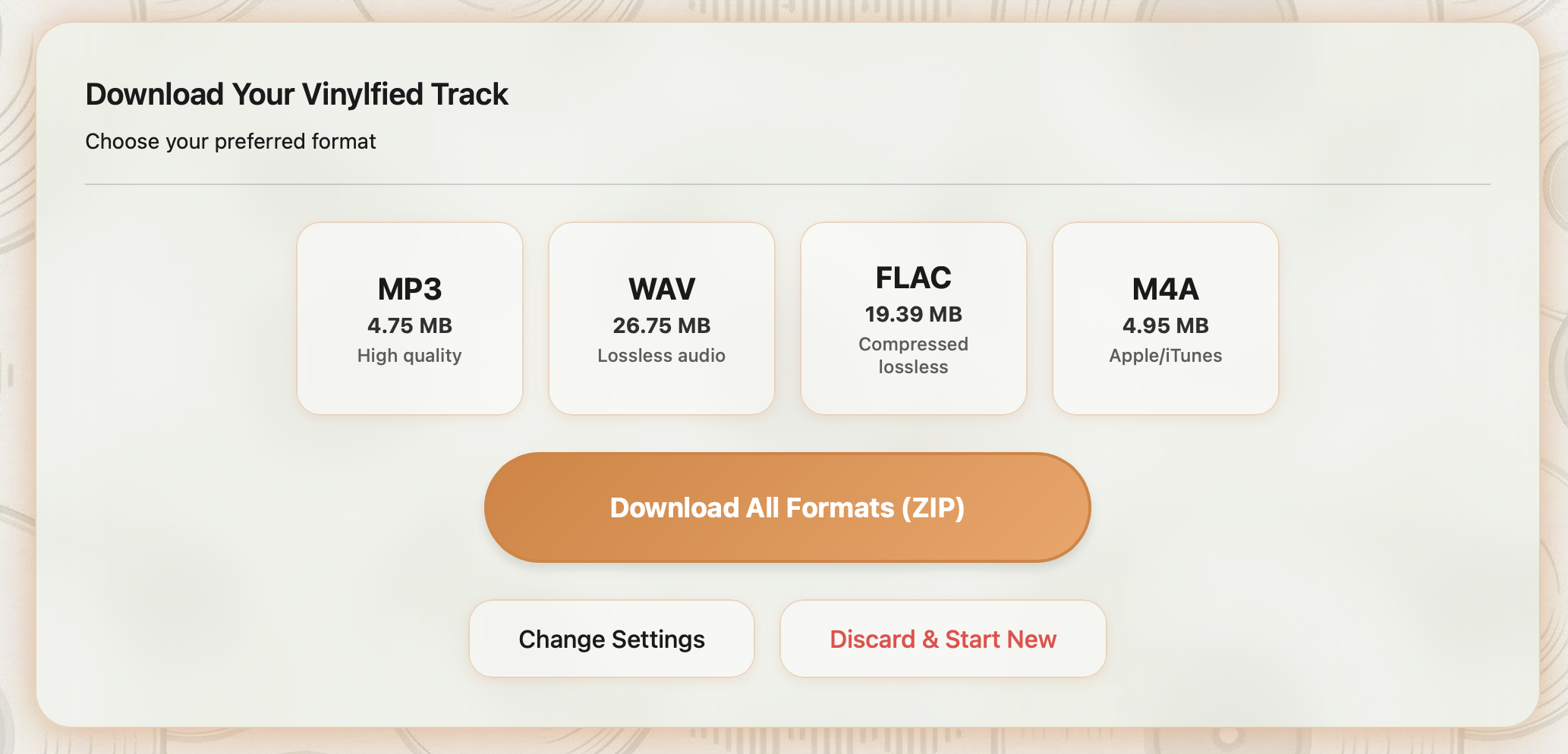
Finally, you can download your processed file in your preferred format. You can download the
individual processed
track in a specific format, or a ZIP file containing multiple formats if needed.
In this section, you can select the format you would like to download. Each format shows an
estimated size of the downloaded file.
If you would like to change your settings, click the "Change Settings" button. If you
have
another track to process, or would like to start over, click the "Discard & Start Over" button.
FAQ
Thank you for enjoying Vinylfy! If you would like to support the project, you can donate to the project using the "Buy Me a Coffee" link at the top of the page. Any amount is appreciated and will help support the development of new features and improvements to the project. We appreciate your support!
Currently, Vinylfy processes one file at a time to ensure the highest quality output for each track.
Yes! But you will need to have Docker installed on your system to use it, and access via localhost to the Docker container.
Yes. Vinylfy can be used in any browser, and supports Progressive Web App (PWA) installation on your mobile desktop. You can also use it on your mobile device by opening it in a browser. Vinylfy has been tested on iOS, iPadOS, as well as desktop browsers such as Chrome and Safari.
Your files are processed locally within your Docker container and are never sent to any external servers. Files are automatically deleted after the configured TTL (Time To Live). For aboslute security, we recommend implementing best practices if Vinylfy is exposed to the internet. Please review the section above for more information.
Vinlyfy includes validation to ensure that only audio files with no DRM (digital rights management) are uploaded to Vinylfy. You are responsible for ensuring you conform to any applicable laws and regulations when using Vinylfy.
Yes. Vinylfy is free to use, as it is open source software licensed under the AGPLv3 license.
Currently Vinylfy is not available for use on the internet. You will need to set it up using Docker.